Before you build a report on a BIM model, you want to know what is inside it. Which categories, how many walls, whether the doors carry a fire rating, whether the levels have sensible names. Until now the honest answer was: open the model in its authoring software, or build a first report and see.
Vcad now has a third way. The Model data browser, a new feature of Vcad, shows everything Vcad extracted from a model right in your browser: the model tree, every property of every element and the 3D view, side by side. No Revit, no Navisworks, no Power BI.
Every element and every property, in one place
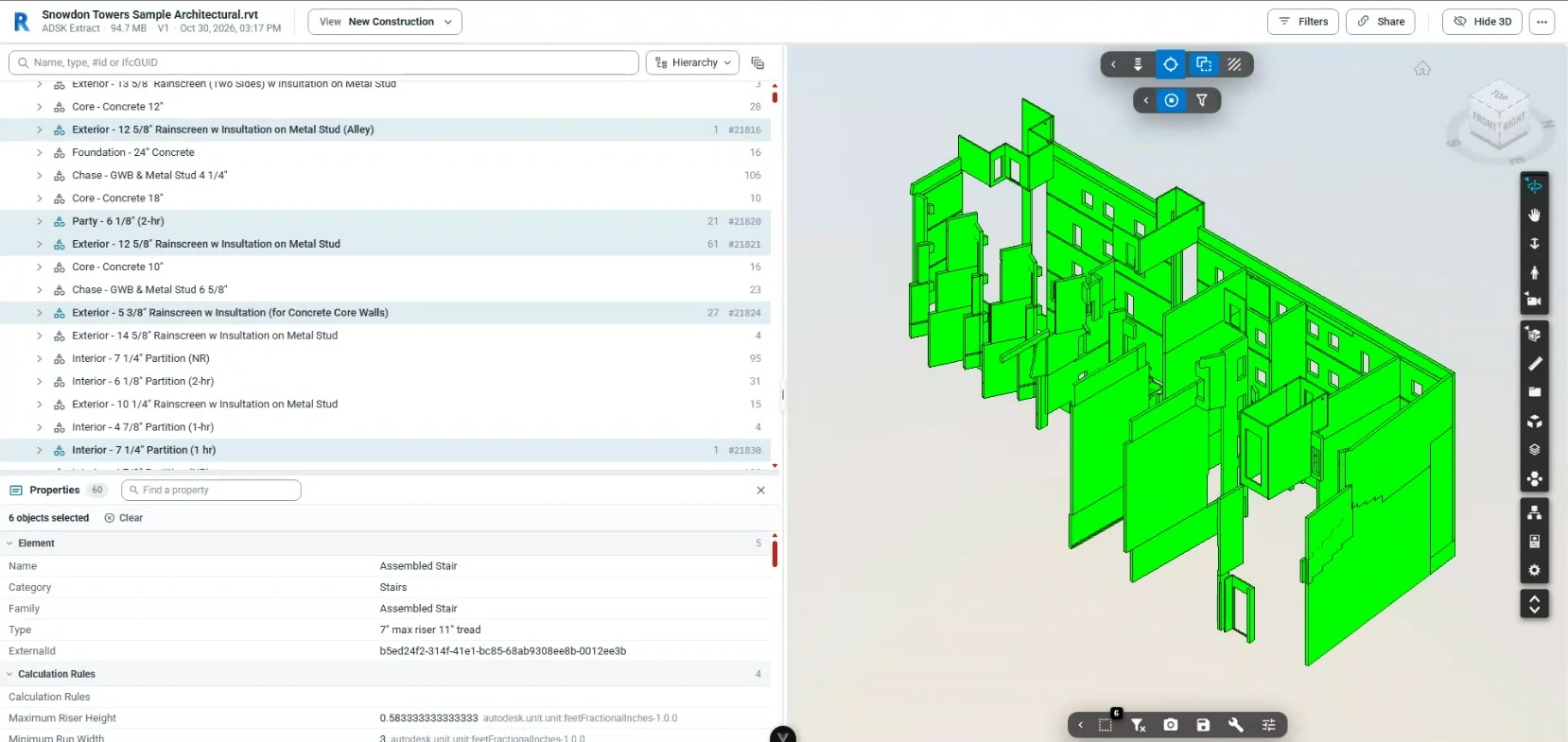
The left panel lists the content of the model, with the number of elements under every node. You can keep the model’s own hierarchy, or regroup it by type, by level or layer, or by source file. That last one tells you, on a federation or a Navisworks model, which original file each element comes from.
Select one element or many, and the properties panel shows everything they carry, grouped in sections, with a search box to jump to the property you need. The 3D view follows the selection, so you always see which objects you are reading.
Filter the model by any property
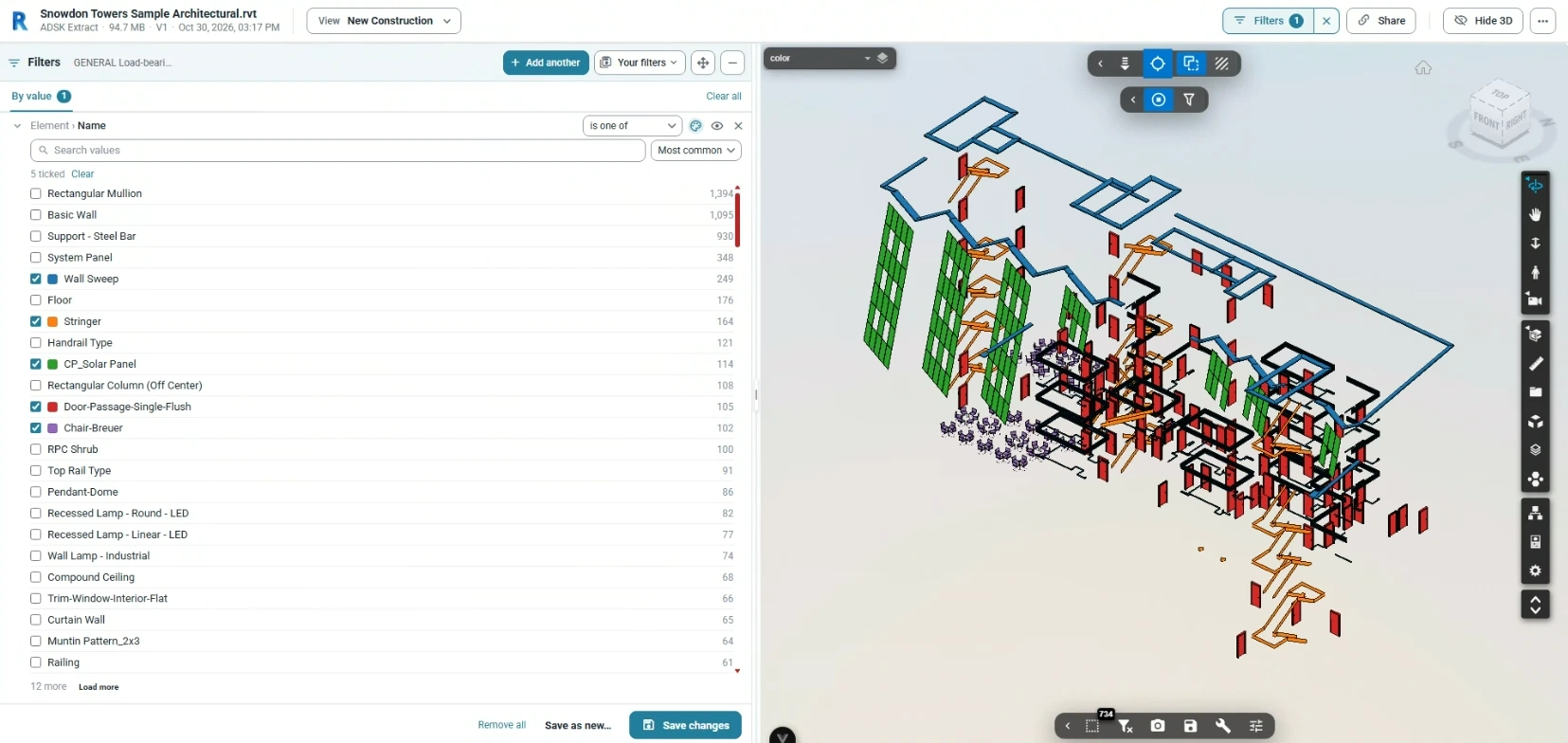
Filters reduces the model to the elements that matter to you. You pick values from a list that already shows how many elements carry each one, so you see what the model contains before you decide what to keep. Conditions can be combined.
Give the selected values a colour if you like: the matching elements stand out in the 3D view, while the rest of the model stays around them as a reference. A set of filters you use often can be saved and applied again, to the model you are working on, to a folder, to a project or to all your models.
Take the data out, as much as you need
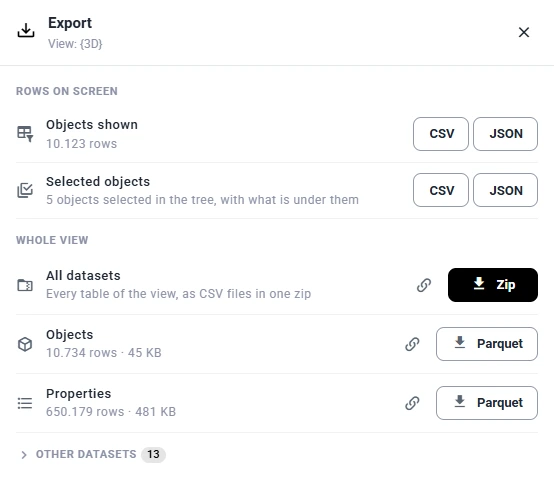
Sometimes the quickest answer is a table. Export lets you choose how much to take, and tells you how many rows each option holds before you download it.
Rows on screen
The objects currently shown, filters included, or only the branch you selected in the tree, as CSV or JSON. CSV opens straight in Excel.
Whole view
The complete tables Vcad produced from the BIM file, the same ones your Power BI reports are built on: all at once as CSV files in a Zip, or Objects and Properties as Parquet.
Share a model with a link
Share creates a link to the Model data browser for that model. Colleagues, clients or consultants open the same tree, properties and 3D view, without access to your file list and without receiving the BIM file. They only need to be signed in to Vcad or Vcad for Forma, and the link does not expire.
Where it fits in your workflow
The Model data browser sits between importing a file and building a report.
Check the conversion
Confirm the model came through with the categories, levels and properties you expected, before anyone builds on it.
Plan the report
See which values really exist before you design filters and measures in Power BI, and copy the External IDs you need.
Answer quick questions
How many, where, with which value: filter, colour and export, without building a report at all.
Open any imported model and click Model data browser, next to Download template. It works on every model converted with Vcad, in every version of Vcad, including Vcad for Forma.
It is also the same data your AI assistant reads when it builds a report for you, as in our bill of quantities built with AI. For every option of the feature, see the Model data browser documentation. For the bigger picture, read our guide to Power BI integration with BIM.
FAQ
Yes. Once the model is converted in Vcad, the Model data browser shows every element and property in your browser, with the 3D view next to them.
Yes. It works on every model converted with Vcad, with Vcad Extract or ADSK Extract, and on federations. On Navisworks models and federations, the By source file grouping tells you which original file each element comes from.
Yes. Export the rows on screen as CSV, which opens in Excel, or download all the extracted tables at once as CSV files in a Zip. Objects and Properties are also available as Parquet.
Anyone you send it to who is signed in to Vcad or Vcad for Forma. They see the model tree, the properties and the 3D view, not your file list or the original file. The link does not expire.
No. The Model data browser runs in Vcad, in your browser. Power BI comes in when you want a report: the tables you explore here are the same ones the report is built on.
Try the Model data browser
Free account, sample models included.
Prefer a guided tour? Request a demo.