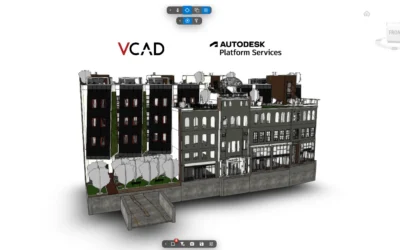
Analyzing the data in a Revit model usually means staying inside Revit. Element properties, quantities, phases: everything lives in the model, but extracting that data to build reports or share it with people who do not use authoring software is difficult. VCAD connects your Revit model to Power BI, so the data becomes interactive reports and the 3D model stays navigable inside the dashboard.
This guide shows how the workflow works and what you get when you bring a Revit model into Power BI with VCAD.
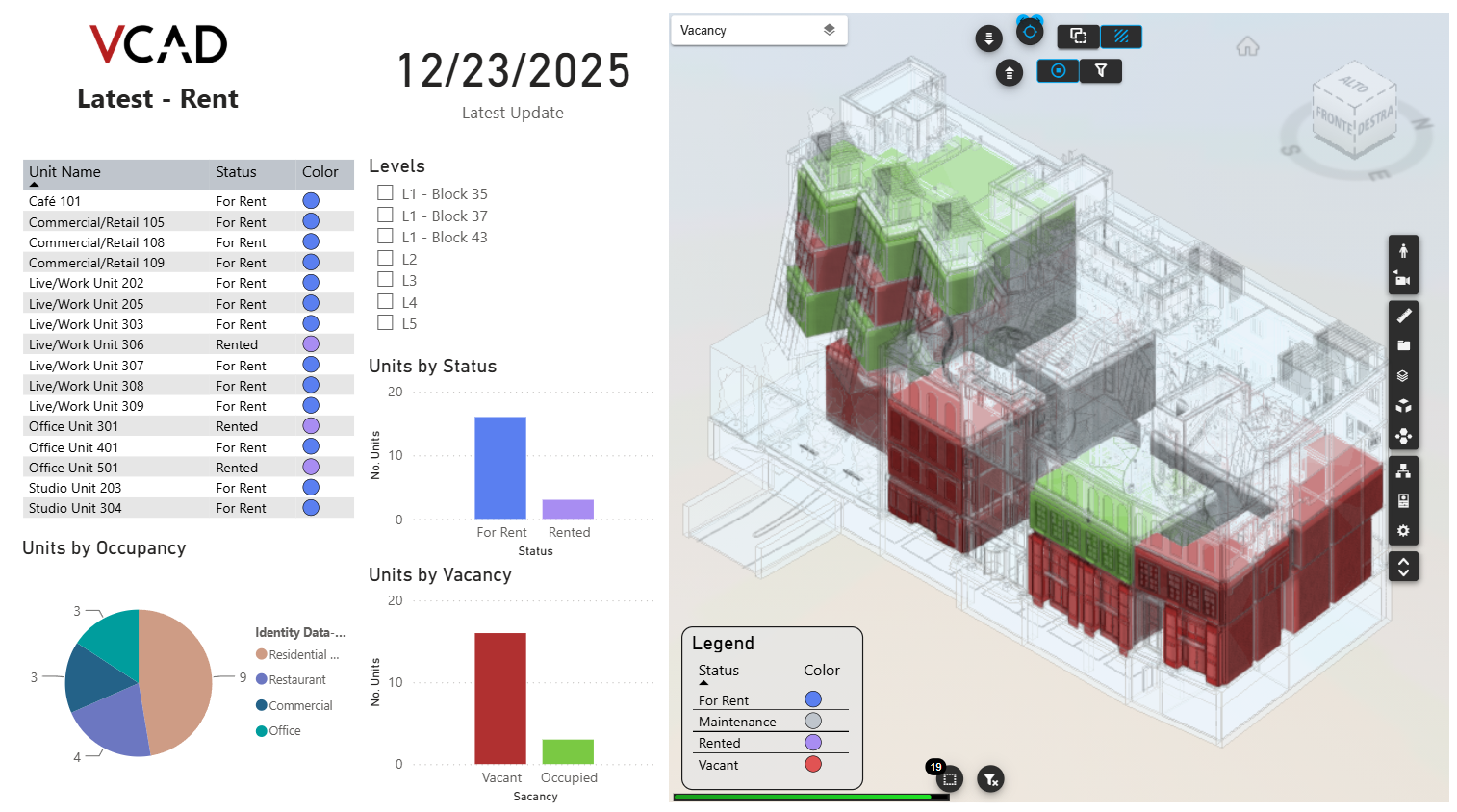
Importing a Revit file into VCAD
The starting point is loading the model. With VCAD Standalone, IFC files are supported natively; to import RVT files you need to enable Autodesk Platform Services, which handles reading the Revit format. With VCAD for ACC the workflow is even more direct, because files come from Autodesk cloud projects with no additional configuration.
Once the model is imported, VCAD extracts its geometry and all the data associated with the elements.
From model to report in Power BI
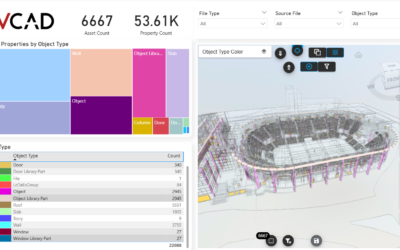
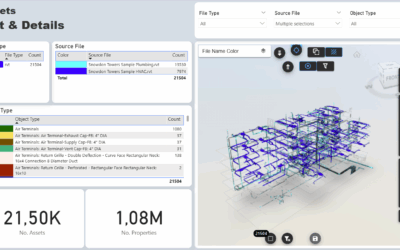
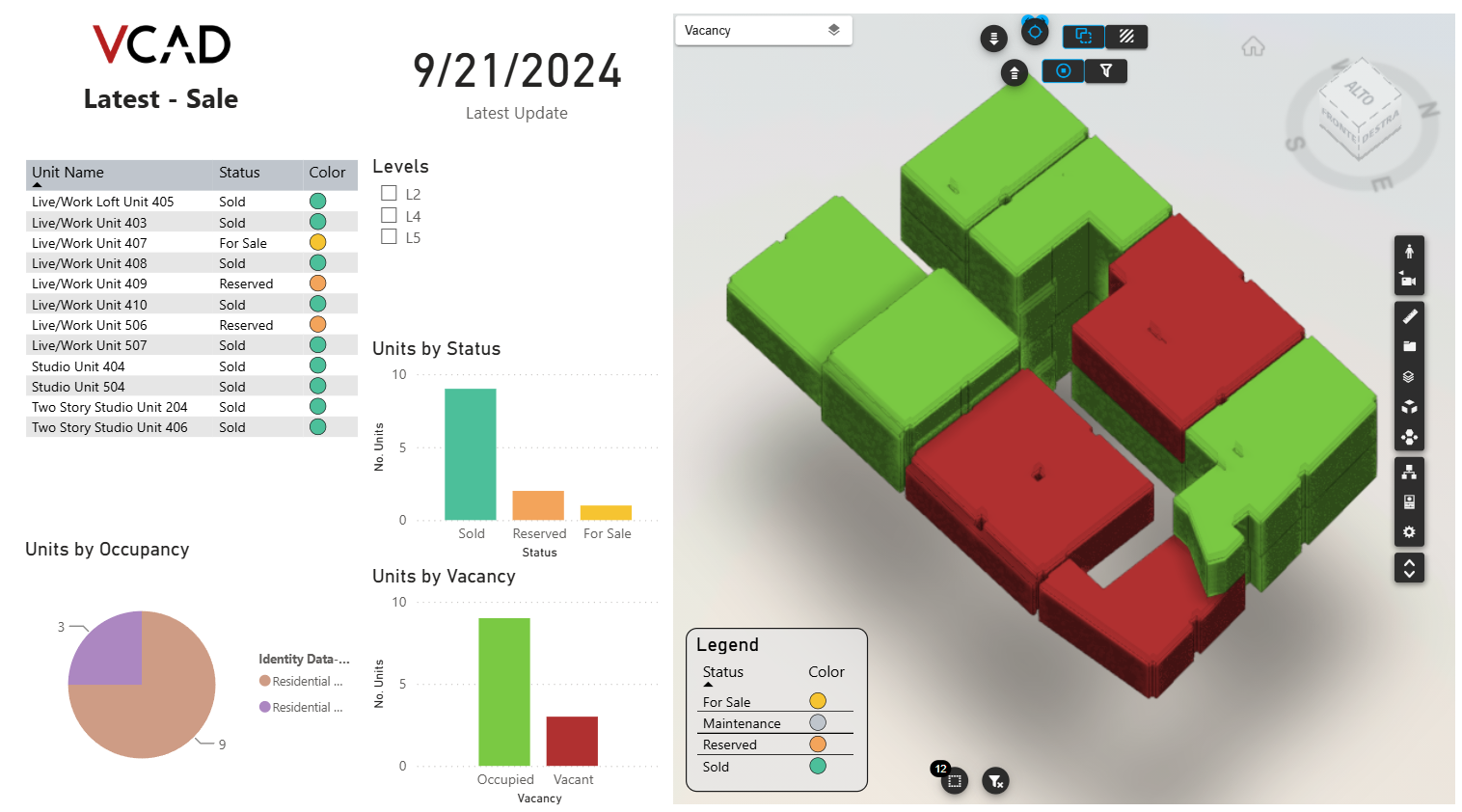
Once the model is loaded, element data (parameters, properties, quantities) becomes regular Power BI tables, ready to use in your reports. The 3D model lives inside Power BI through the VCAD custom visual, navigable directly in the dashboard.
The connection is two-way: when you select a data point in a chart, the matching element is highlighted in the model, and the other way around. You immediately see which part of the building the number you are looking at refers to. Elements can be selected by category, family or type, and located in the 3D model.
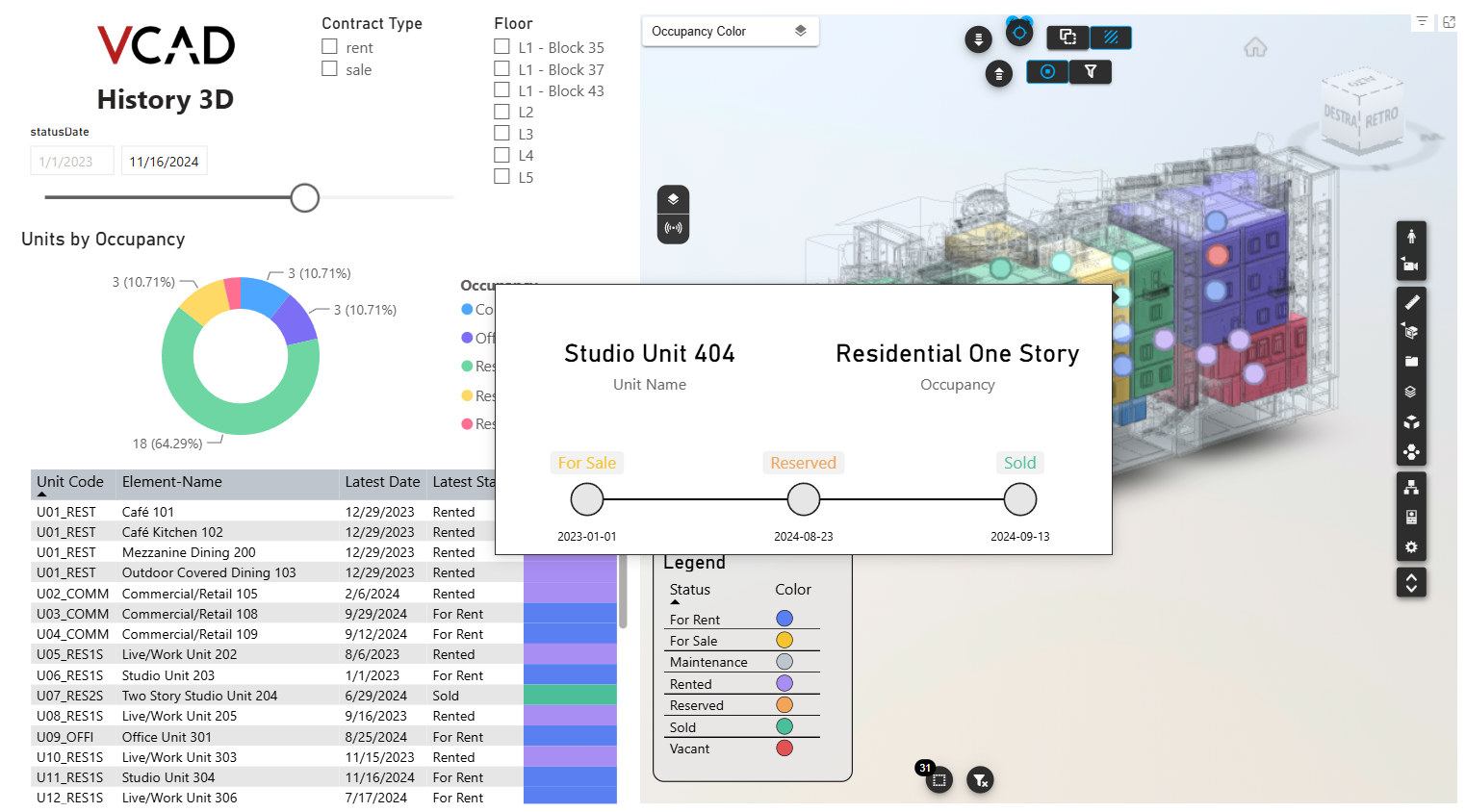
Reports from any view or phase of the model
One of the most useful options is generating reports from any view of the Revit file, with the data corresponding to that view. You can also work by phases, building reports that reflect the project phases. This way the analysis follows the logical structure of the model instead of flattening everything into a single table.
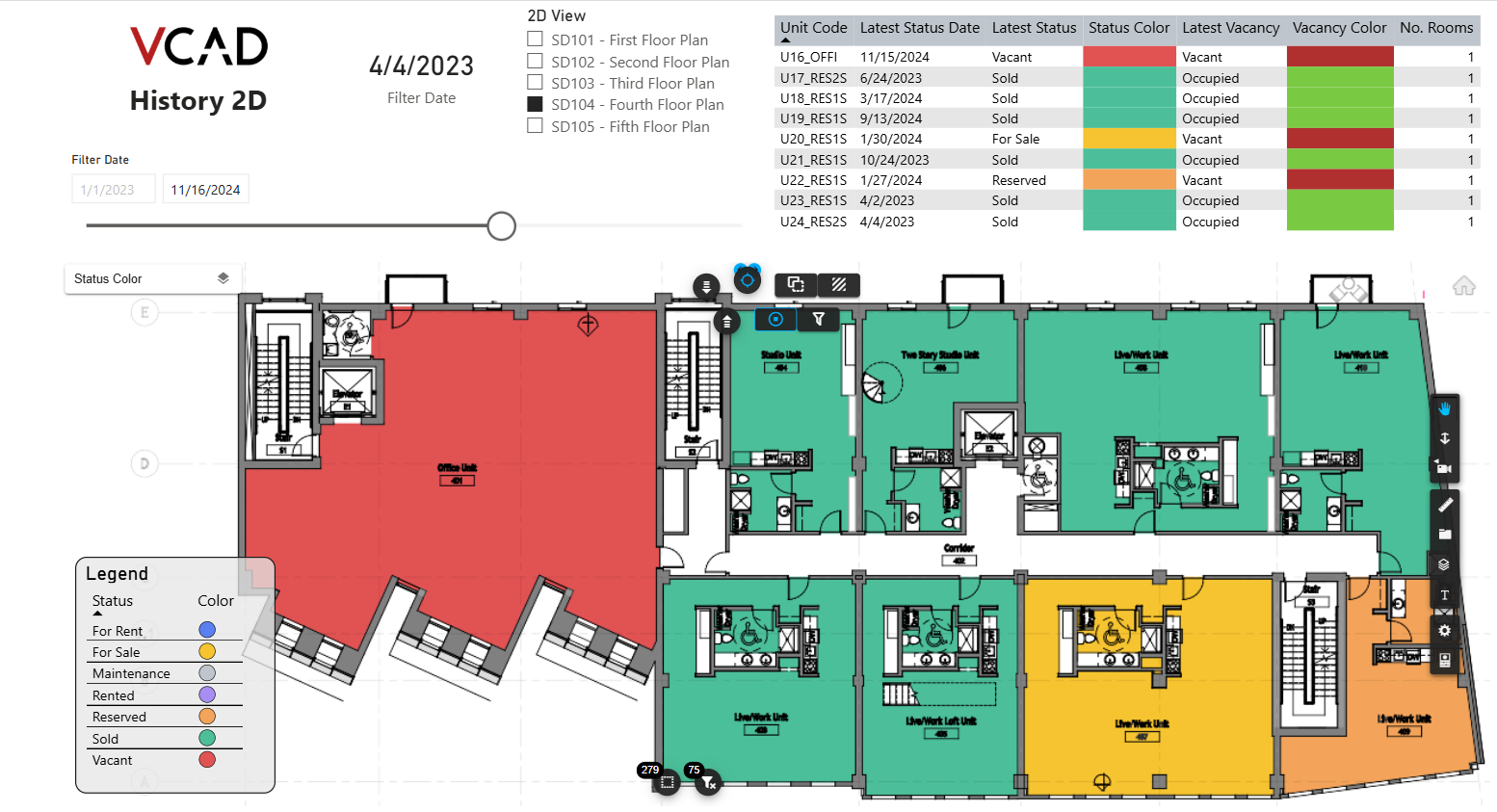
Why analyze Revit data in Power BI
Bringing the data into Power BI makes it accessible to people who never open Revit: project managers, analysis teams, business units. Reports refresh, are shared and published like any other Power BI content, but stay connected to the real model. The data is no longer locked inside the design software, it becomes a basis for making decisions.
For an applied case study on integrating Revit and Power BI, you can read our dedicated article.
Try it on your model
The best way to understand what VCAD can do with your Revit files is to see it on your own data. Book a demo with our team and we will show you the full workflow, from importing the model to the report in Power BI.