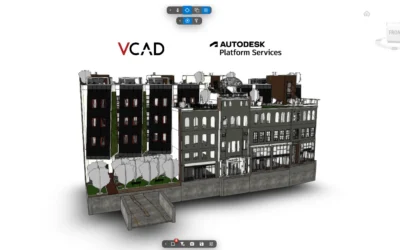

A digital twin puts what the building is doing on the model of the building: which rooms are too warm, too cold or short of fresh air, and where they are. The data usually already exists in the building management system (BMS), but it lives in tables of sensor ids and timestamps, far from the BIM model.
Vcad already works with AI assistants. Download the template of the model as a Power BI project, put a week of BMS readings next to it and let the assistant build the twin: rooms coloured by comfort status, an icon on every room, a day and hour selector, floor by floor. No code to write and no connector to install. A free kit has the sensor data, the prompt and the steps to try it on a sample model.
From a week of BMS data to a digital twin on the BIM model, in about a minute and a half.
What you need
Four things, all free to start with.
A Vcad account
The free account includes the Samples folder with Snowdon Towers, a Revit model whose rooms carry a number, a name and a level.
Power BI Desktop
To open the project, refresh the readings and see the rooms change colour on the 3D model.
An AI assistant
It has to read and write files in a folder: Claude Desktop and Claude Code both do.
The kit
One simulated week of BMS readings (temperature, CO₂ and occupancy for 39 rooms), the first prompt and the steps. Download (77 KB)
Three steps to a digital twin in Power BI
About twenty minutes, most of it talking.
Download the template as .pbip from Vcad
Sign in, open Samples, select
Snowdon Towers Sample Architectural.rvt, click Download template, then Download .pbip. Unzip it into an empty folder and copy thedatafolder of the kit next to it. A Power BI project (.pbip) is made of text files: an assistant can read and edit it.Talk to the assistant
Open the folder with your AI assistant and paste the prompt below. It matches the sensors to the rooms of the model, tells you what stands out in the week, asks you a few questions (comfort thresholds, colours, the layout you prefer) and builds the page.
Open it in Power BI and explore the week
Open the
.pbipin Power BI Desktop and click Refresh. Pick a day, an hour and a floor: the rooms change colour and the icons tell you what is wrong. Four incidents are hidden in the week.
The first prompt
Paste it as it is, then answer the assistant’s questions.
This folder has the VCAD Power BI project of the Snowdon Towers building and, in data/, one week of readings from the building management system: temperature, CO2 and occupancy, room by room, hour by hour. Build me a digital twin page: the rooms in the 3D coloured by status, a marker with a clear icon on every room, a day and hour selector, floor by floor, and a way to see at once which rooms are in trouble. Keep it to colours and markers, no heatmaps.
What the digital twin shows
The page the assistant builds answers one question: which rooms are in trouble, and when. At the top, the KPIs for the moment selected: rooms in alarm, rooms in warning, temperature, maximum CO₂ and people in the building. On the left, the 3D model with every room coloured by status, green, orange or red, and a marker with an icon on top: a check, a thermometer, a snowflake or CO₂. On the right, the day, hour and level selectors, a chart of the rooms in warning or alarm hour by hour, where the incidents stand out as peaks, and the list of the rooms, worst first. Click a room and the 3D isolates it and zooms in.
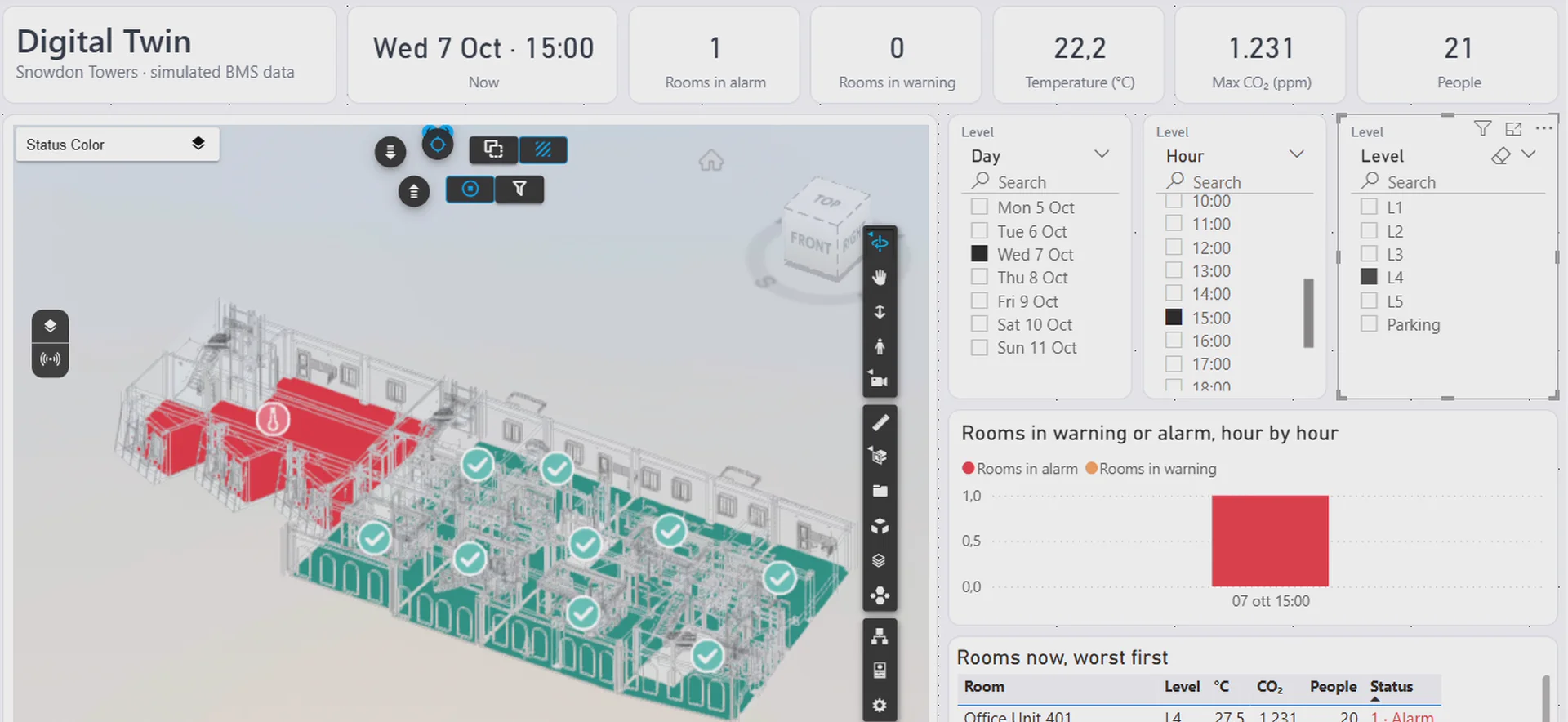
Wednesday at 15:00 on level 4: Office Unit 401 in red at 27.5 °C with CO₂ at 1,231 ppm, every other room green.
What the assistant had to solve
A BMS export and a BIM model do not speak the same language. The template reads the model live from Vcad on every refresh, so the assistant could look at the rooms of the model and the sensors of the export side by side and check the join before building anything.
Sensors and rooms
- The export has 117 sensors, three per room, and 19,656 hourly readings from Monday 5 to Sunday 11 October 2026.
- Every Revit room carries a Number (101, 303, P02) and the BMS uses the same numbers: all 39 rooms of the export match one of the 54 rooms of the model.
- Before building, it reported the four incidents of the week: Live/Work 303 cold on Tuesday night, Office 401 overheated on Wednesday afternoon, Café 101 with high CO₂ at Friday lunch, machine room P02 hot over the weekend.
Status, colours and icons
- It turned the readings into one status per room and hour: OK from 19 to 25 °C with CO₂ under 800 ppm, alarm under 18 or over 27 °C or with CO₂ over 1,000 ppm, warning in between.
- The Vcad viewer can draw heatmaps, but the brief was colours and markers: the assistant kept it to one colour per room.
- For the markers it read how the Vcad viewer draws them and drew seven SVG icons, one per problem, picked room by room by the worst reading of the moment.
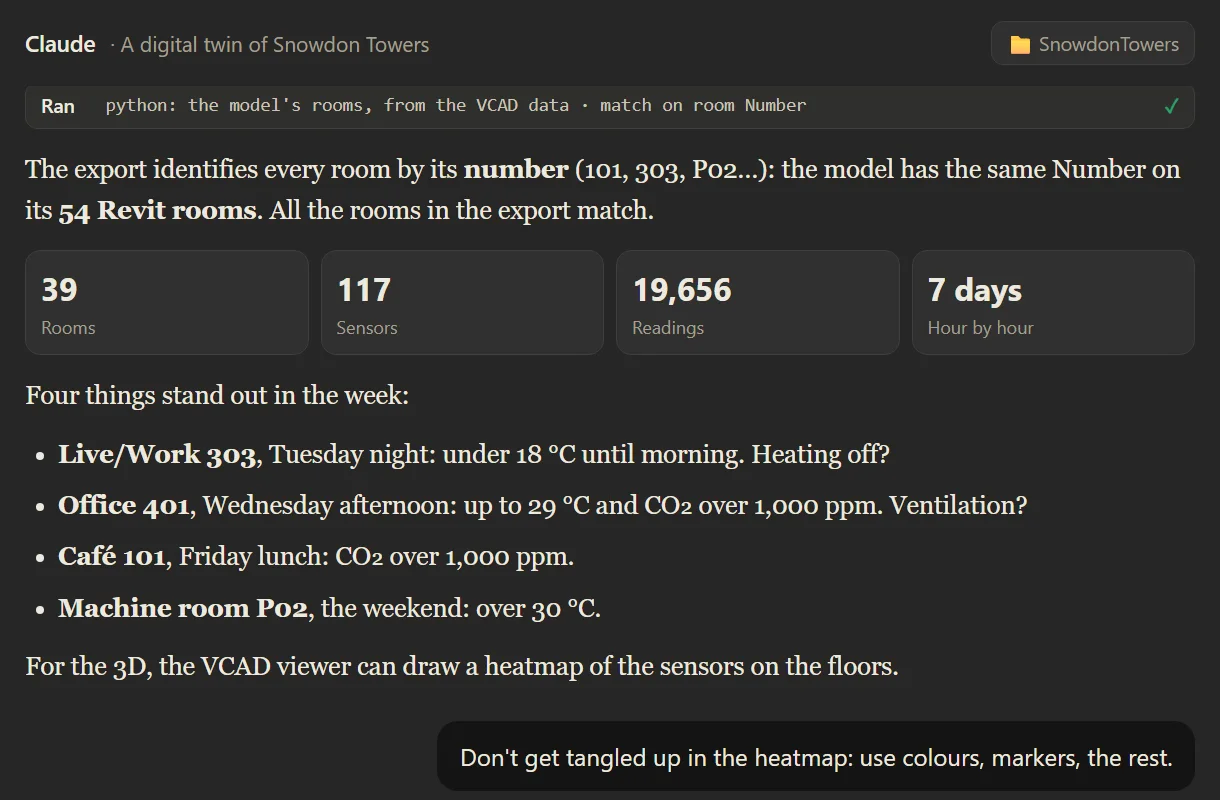
Before building anything, the assistant matches the sensors to the rooms and points out the four incidents of the week.
The whole exchange, three requests and the assistant’s answers, is in the conversation behind the video (PDF).
Use it with your own BMS data
The same steps work on any model in Vcad. Upload the model, download its template as a .pbip and export two tables from your BMS or IoT platform: one row per sensor with the room it belongs to, and one row per sensor and hour with the reading. The room number or name is the key: the assistant tells you which sensors it could not match. The project contains the key to your model: keep it private, as you would a password.
For more on buildings in operation with Vcad, see Vcad and Power BI for facility management, real-time IoT data with Microsoft Fabric and the cognitive digital twin of a multitenant building. For other reports built with an AI assistant, see a 4D report and a bill of quantities, or read our guide to Power BI integration with BIM.
FAQ
No. The MCP server, coming soon, will let AI assistants work on your Vcad models directly. This example shows what is possible today with files alone.
No. The readings in the kit are simulated, but plausible: one week of hourly temperature, CO₂ and occupancy for 39 rooms of Snowdon Towers, with four incidents hidden in it. They have the shape of a real BMS export, so the same steps work with your own data.
Any system that can export two tables: the sensors, with the room each one is in and what it measures, and the readings, one row per sensor and time. CSV files are enough, as in the kit. Temperature, CO₂ and occupancy are the example; humidity, energy or lighting work the same way.
The assistant checks the join before building anything and lists the sensors it could not place. You can match on the room name instead, or give it a small table that maps the BMS codes to the room numbers of the model.
Not in this example: it shows one week of exported readings, and you move through it with the day and hour selectors. The model is read live from Vcad, and the readings are a source like any other in Power BI, so the page shows new data every time the source is updated and the report is refreshed.
The Vcad viewer can draw heatmaps too. For a first twin, one colour and one icon per room are clearer: you see at once which room is in trouble and why, and they are easier to explain to whoever runs the building.
Claude is a product of Anthropic. Vcad is not affiliated with Anthropic.